
GP- Article
Say Goodbye to Blank Timelines With Text-to-Video Generation
Learn how to use Dreamina AI's text-to-video generator to create scenes, refine clips and build engaging videos with a structured editing workflow.
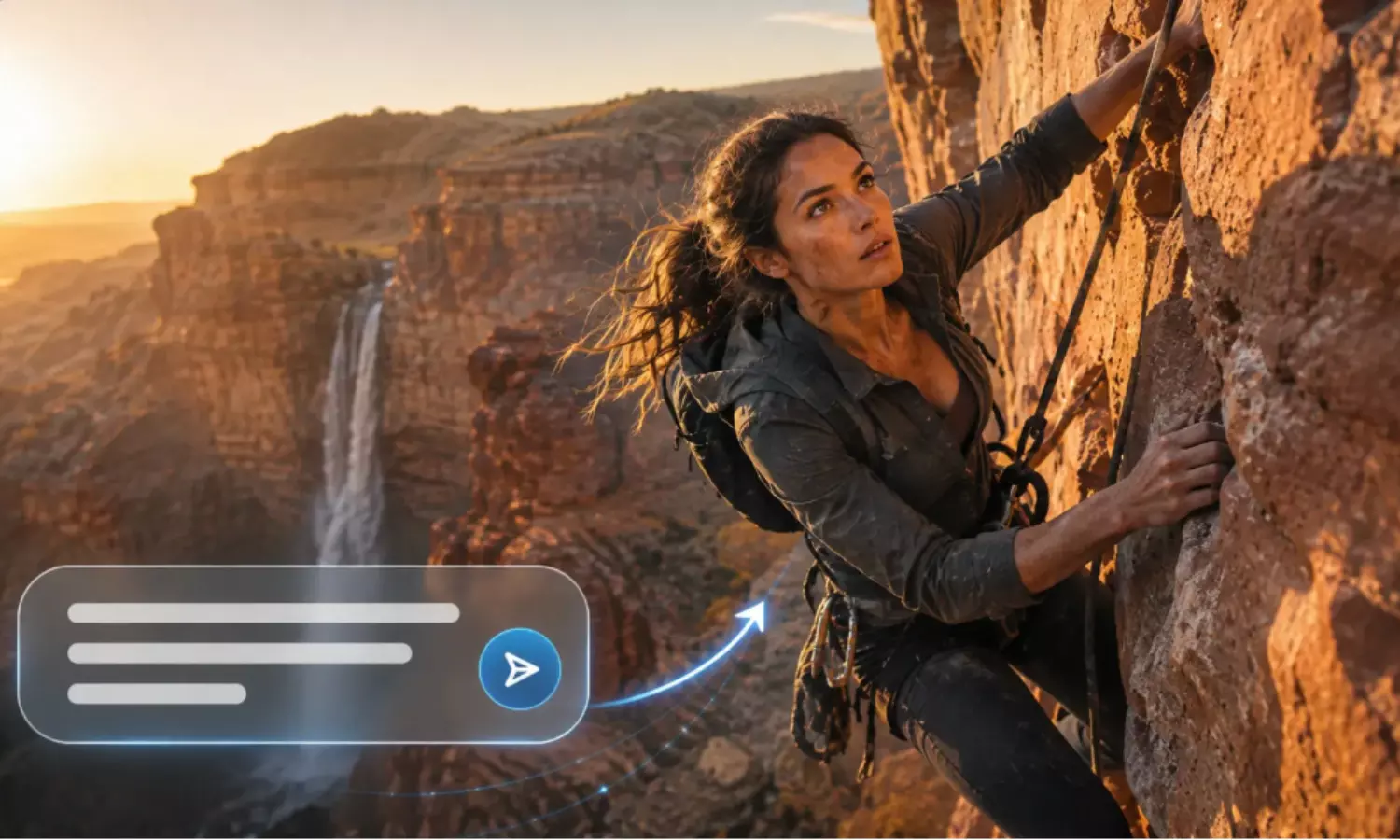
Even with a great video concept, an empty video timeline can seem daunting. The first draft can be a bit slow, especially when it takes time to find footage, plan scenes, and think about transitions. Dreamina AI can convert text descriptions into video clips, making creative ideas easier to assess. Various settings, movements, and styles are explored before creating a complete video. But the footage generated is only creative material and not a finished product. But with careful planning, editing, and reviewing, the result is a sequence that conveys its message well.
Why an Empty Timeline Can Stall a Good Idea
Understanding the message that a video should convey and having visuals that convey the message clearly are two different things. Creators can search through stock libraries, set up shoots, and try out editing before they know if their ideas are successful. Text-to-video generation flips this to translate written descriptions into visual scenes that can be reviewed. With Dreamin’s free text to video generator, delve into potential compositions, actions, and atmospheres without fully committing to a sequence. These initial sketches will point you in the right direction and indicate what visual data you are lacking. However, generation is not a substitute for planning, as each clip should have a clear purpose. A good first step is to relate each image directly to the audience, the message, and the desired effects.
Turn a Video Concept Into a Sequence of Visual Building Blocks
A good video typically includes a variety of shots, which introduce, explain, highlight, and resolve an idea. Dreamina AI can create individual scenes for specific storytelling purposes. Before you render footage, think about the following visual elements:
- The first hook: Make an initial image with one clear idea, action, or strong contrast. A focused opening creates curiosity but not too much information for viewers.
- Establishing Shot: What does the shot setup tell you about the setting, light, time of day, and staging? These details convey the location, atmosphere, and context of the scene.
- The action shot: One shot that encourages one significant move or interaction toward the main idea. Sometimes the simplest actions will be more effective than a number of unrelated events in a clip.
- Detail shot: Draw attention to something significant – a close-up of something important: an object, a texture, an expression or a gesture. This shot is for emphasis but does not duplicate the establishing shot.
- The transition visual: Make a visual connection between two ideas. Ensure movement, colour, and direction are matched to create a connected sequence.
- Closing image: End with a compelling or meaningful visual. Include space for end cards or text superimpositions as needed.
Plan the Edit Before Generating the Footage
Draw the lineups ahead of time, before you open Dreamina AI, in order to have a clear editorial reason for each generation. Describe one sentence for each shot that is planned; explain the relationship of this shot to the next one. A practical shot list will consist of the opening, context, main action, detail, transition, and ending. Not all visuals need to be AI-generated; some of the information conveyed can be just as well captured using existing footage, photos, screen recordings, and graphics. Select the final platform and aspect ratio in the early stages to decrease the amount of unnecessary reframing. Vertical videos can work well for many mobile-first video types, and horizontal frame types are great for presentations and standard widescreen video. This preparation also ensures that you don't end up mixing up the essential shots with the optional creative experiments.
Steps to Say Goodbye to Blank Timelines With Text-to-Video Generation
Step 1: Fill the empty timeline with a fresh idea
- Sign up or log in to Dreamina, so an empty timeline never slows you down.
- Next, visit the "Create" tab from the left menu, then choose the "AI video" option.
- Explain the look and feel you want, then include elements, sound, background, theme, and concept.
Step 2: Choose a model and render your first scene
1. Look at the model options at the bottom of the dialogue box, then choose one.
2. Options cover Dreamina Seedance 2.5, Dreamina Seedance 2.0, Dreamina Seedance 2.0 Fast, Dreamina Seedance 2.0 Mini, Dreamina Seedance 1.0, etc.
3. Click "Omni reference" so the AI follows multiple reference images for more accurate video results.
4. Use the "Aspect ratio" and "Resolution" tabs to select a custom aspect ratio and resolution.
5. Hit the "Generate" tab to begin creating, then watch your blank timeline fill up fast.
Step 3: Fine-tune the scene and save it
1. Tap "Edit prompt" or "Regenerate" whenever the clip falls short of what you first imagined.
2. Choose "Edit video" to adjust the generated video until it finally feels right to you.
3. Pick "Edit segment" to change just one part of the video without touching the rest.
4. Use "Extend video" for a longer scene or "Creative upscale" for noticeably better video quality.
5. Dreamina gives you complete freedom to edit the video however you like, so experiment boldly.
6. Click "Download" in the interface's top right corner to store the video on your device.
Match Generated Clips to the Rhythm of the Edit
An attractive clip can still get a sequence bogged down if it's moving in a different direction, the same length, or has a different emotional feel than surrounding clips. The outputs from the Dreamina AI should complement the rhythm of the edit, not distract from it. A camera push can add to a reflective narration, or a more dynamic movement can enhance an action beat. Allow enough visual room for captioning, dialogue, and transitions. Try to minimize conflicting effects or unnecessary motion throughout the entire time. Cut out unhelpful lingering bits, rearrange the order of scenes if it seems confusing, and swap out visuals if they don't fit with the flow. Framing, color, and movement can all help make generations feel like they are part of one cohesive story.
Make the Workflow More Efficient Without Rushing Quality
Create a single representative shot, then go on to create a full sequence. This preliminary test will help you determine the model's performance, clarity, visual quality, and suitability for the project. Please note the credit cost shown; usage may vary with different models, duration, resolution, and generation settings. Store useful prompt variations outside and make one big change to the instructions per revision to compare results more clearly. Put each output into one of three categories: keep, revise, and discard. This is a straightforward technique that keeps your editing timeline free of all the unnecessary but interesting clips. Generation speed and controls may vary based on the available Dreamina AI options; check the settings before generating large volumes.
Conclusion
With Dreamina's AI text-to-video generation, an empty timeline becomes a gallery of video possibilities. The power lies in the fact that it makes it easier to produce goal-oriented video, not random video. Have a plan, create each meaningful scene one at a time, and check each creation against the story. Knowing what to select and how to edit them together, and then refining them, can help create a clear, engaging finished video from individual shots.